This quick guide will help you join your live trial session successfully — step by step.
TABLE OF CONTENTS
- Step 1: Access the Course Link
- Step 2: Login or Create Your Account
- Step 3: Open Your Course Dashboard
- Step 4: Find Your Class Schedule
- Step 5: Join the Live Class
- Troubleshooting Tips
- ? You’re All Set!
Step 1: Access the Course Link
You’ll receive your trial course link directly from the SIT team on WhatsApp.
? Click the shared course link — for example:
https://learn.switch2itjobs.com/learn/batch/BAOCT29-25-ANJANI-MORNING-Batch/about
Once the page opens, click the “Start Free Trial” button.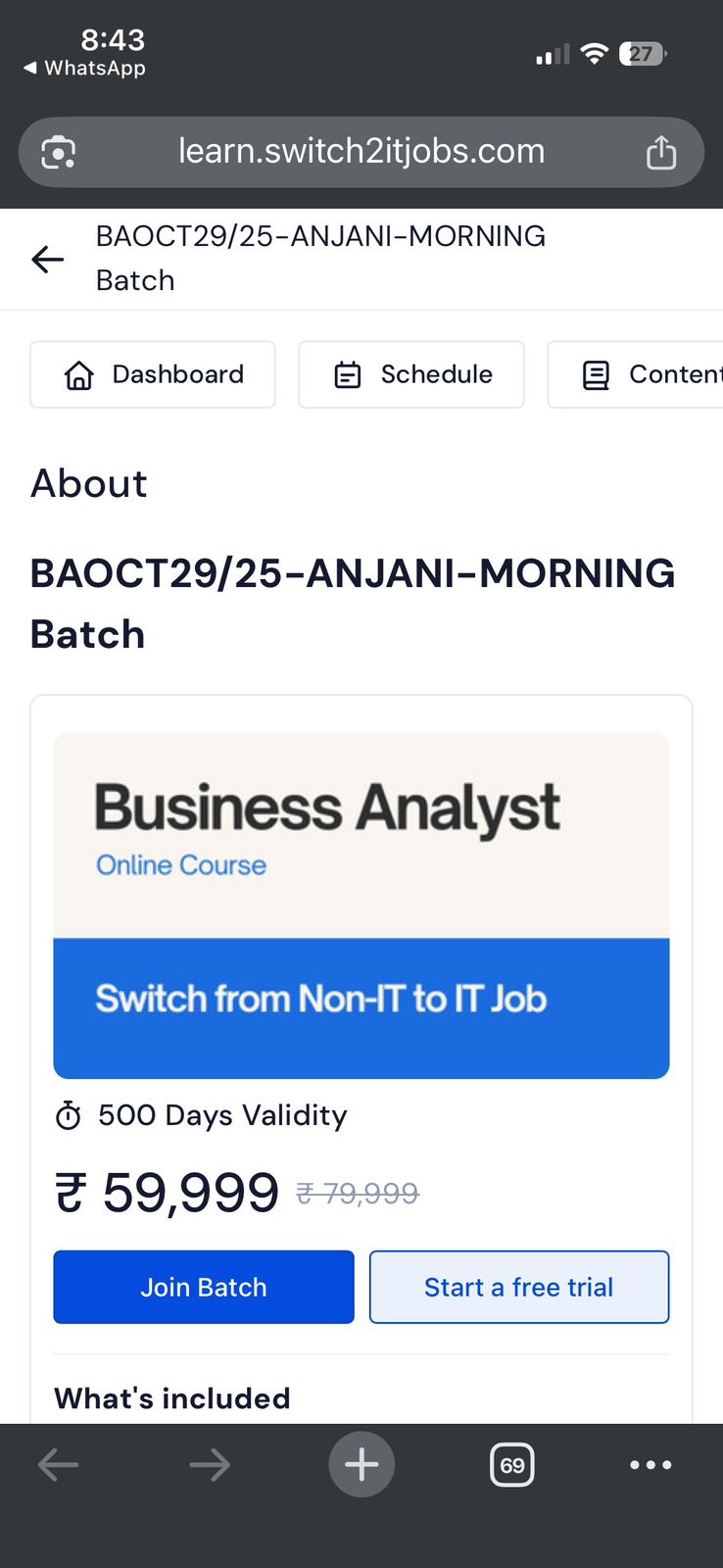
Step 2: Login or Create Your Account
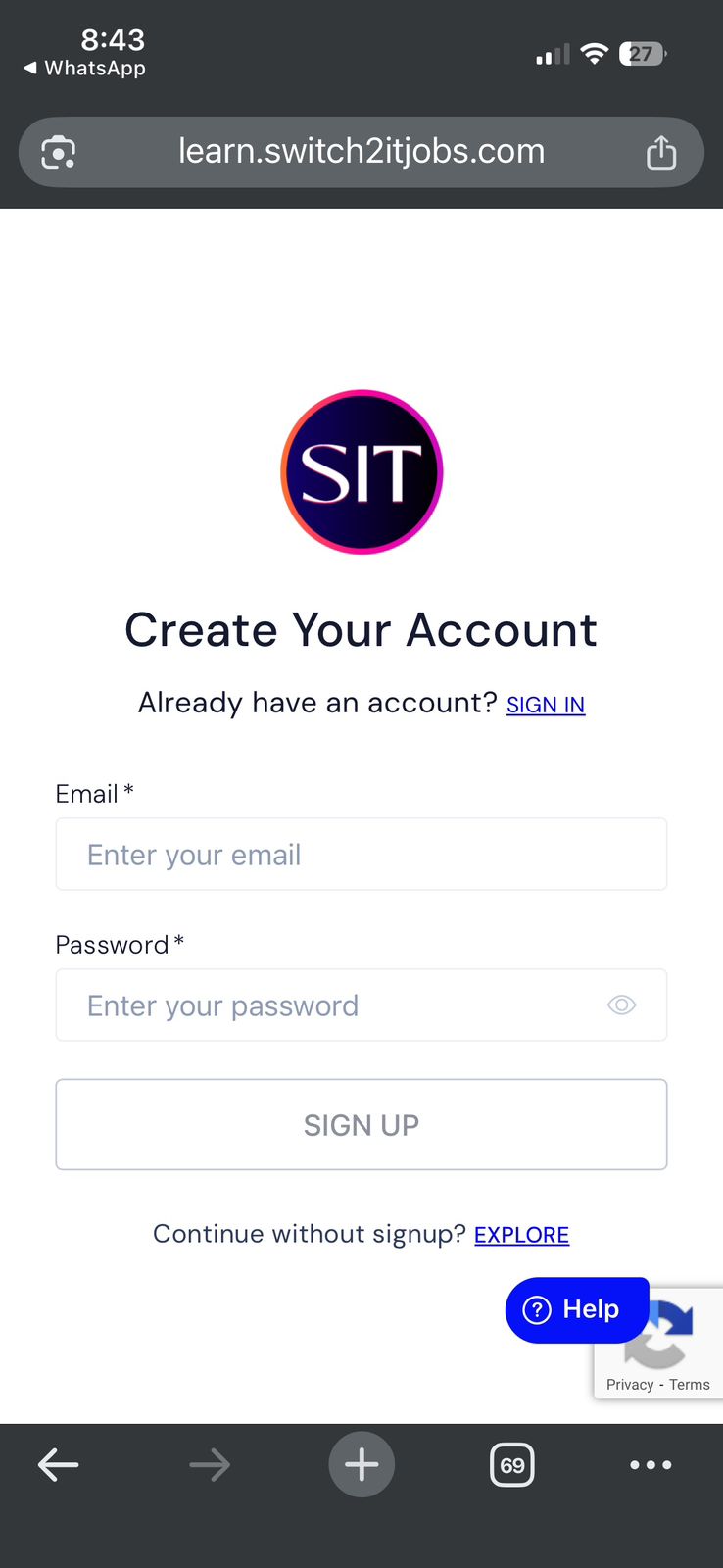
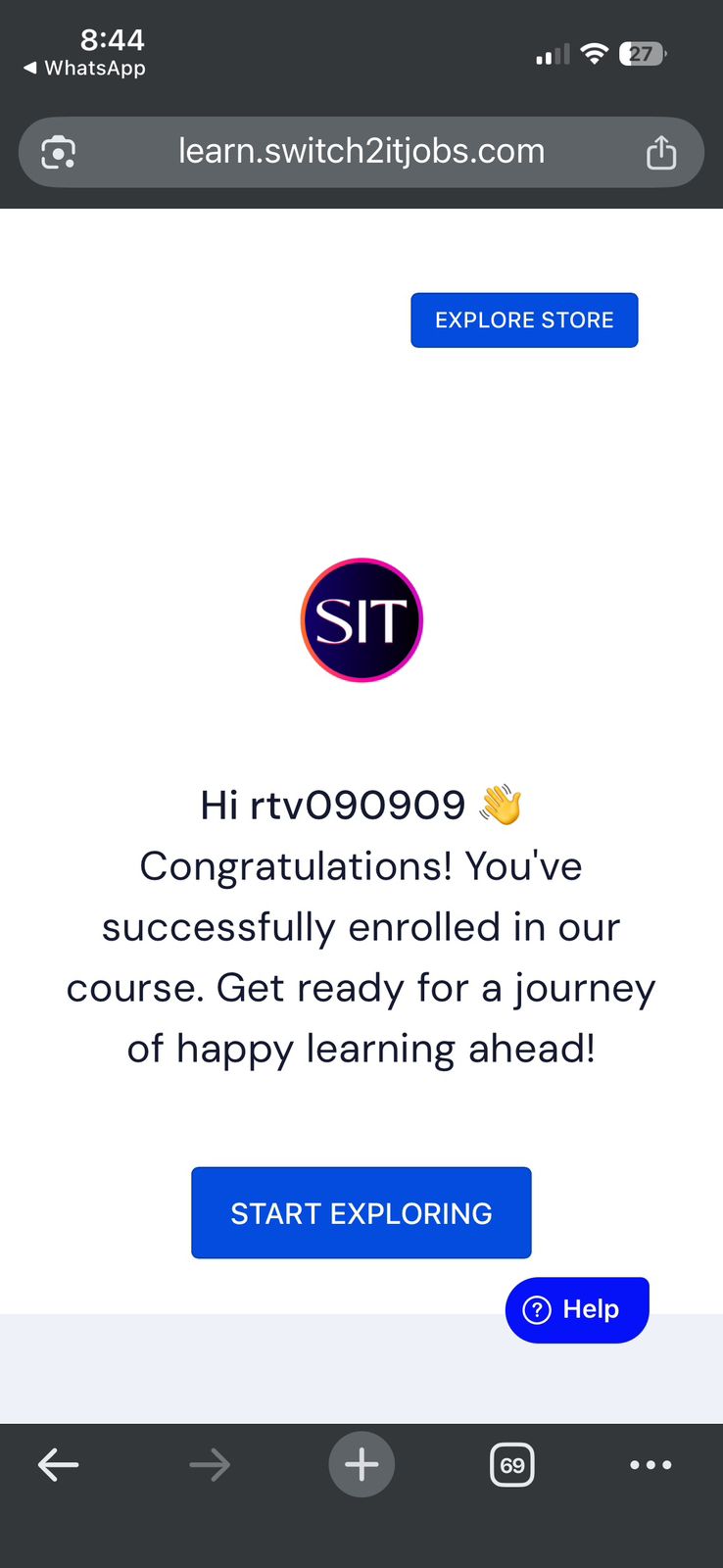
After clicking “Start Free Trial”, you’ll be redirected to the login page.
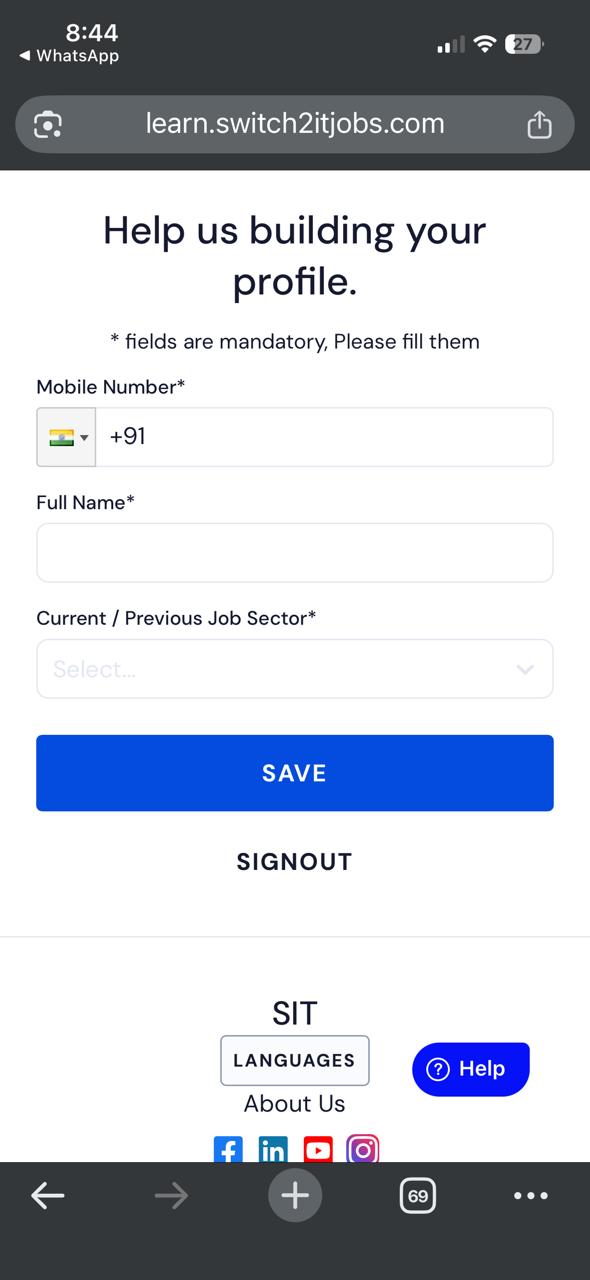
If you’re new, click “Create Account” and enter your details (Email, Password, Name, etc.).
If you already have an account, simply log in using your registered email and password.
✅ Tip: Make sure to use the same email each time you log in to avoid confusion.
Step 3: Open Your Course Dashboard
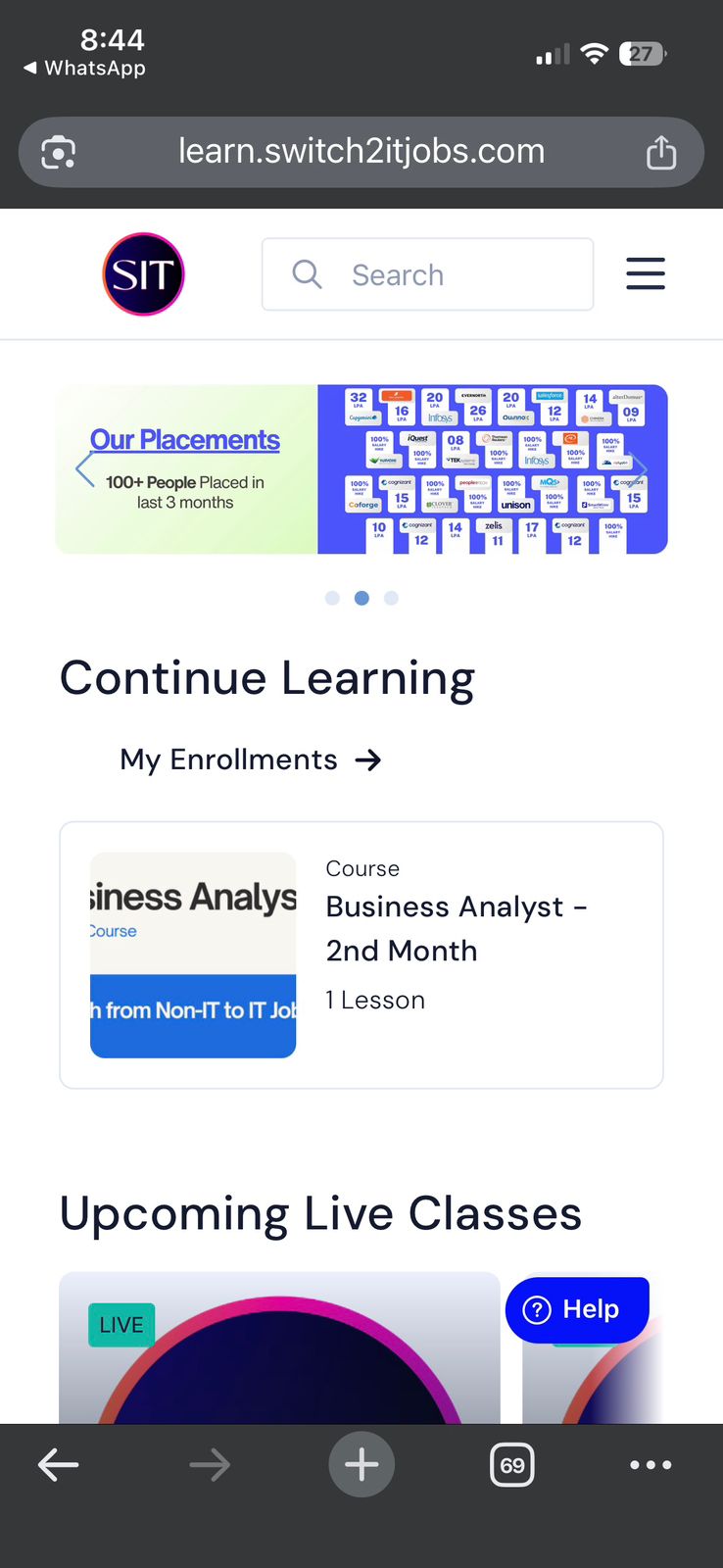
Once logged in successfully, you’ll be taken to your Course Dashboard.
If you’re not redirected automatically, open:
? https://learn.switch2itjobs.com/learn
Here you’ll find your enrolled course under “Continue Learning” or “My Enrollments.”
? If you still can’t find the course:
Click the WhatsApp course link again
Then click “Start Free Trial” once more
You’ll now see the course added to your dashboard

Step 4: Find Your Class Schedule
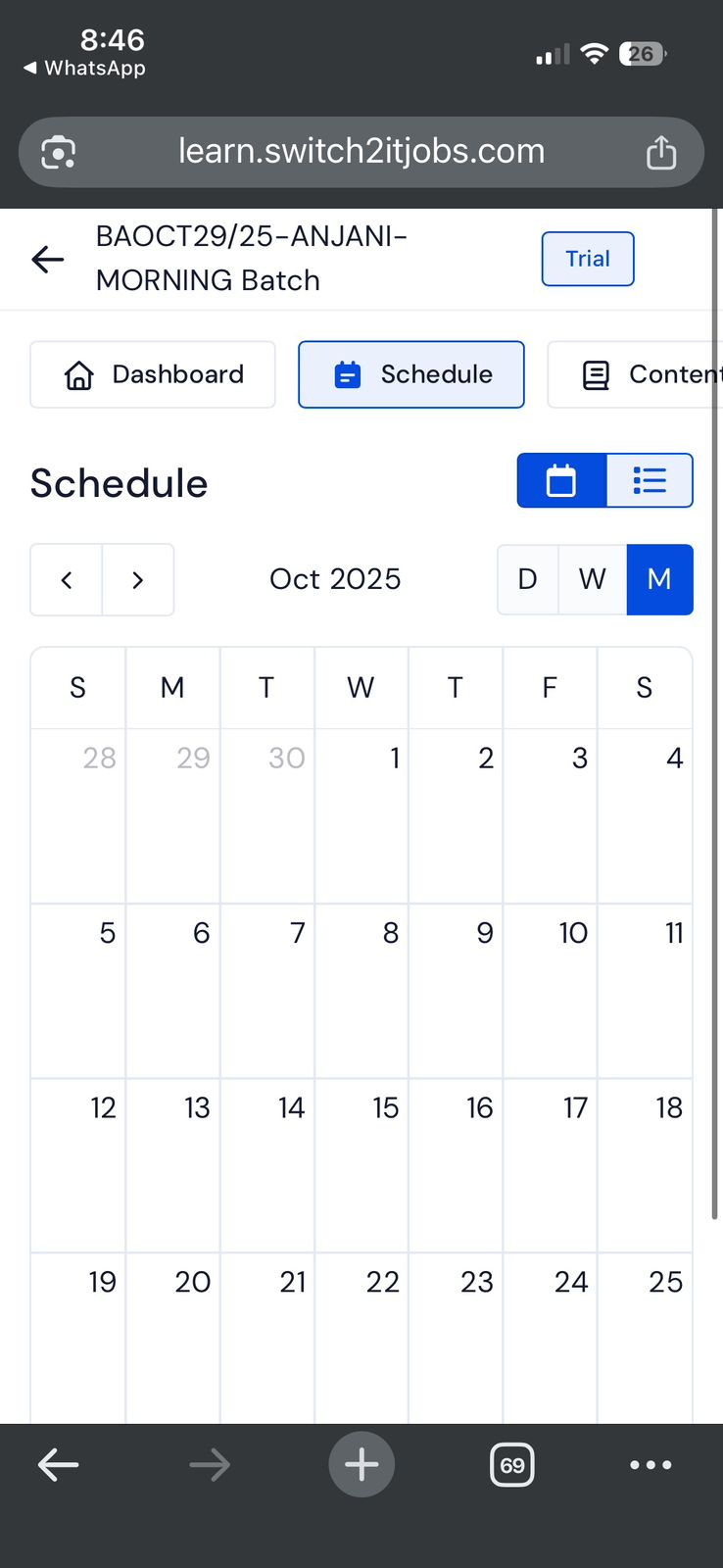
Once you open the course, you’ll see the Course Dashboard.
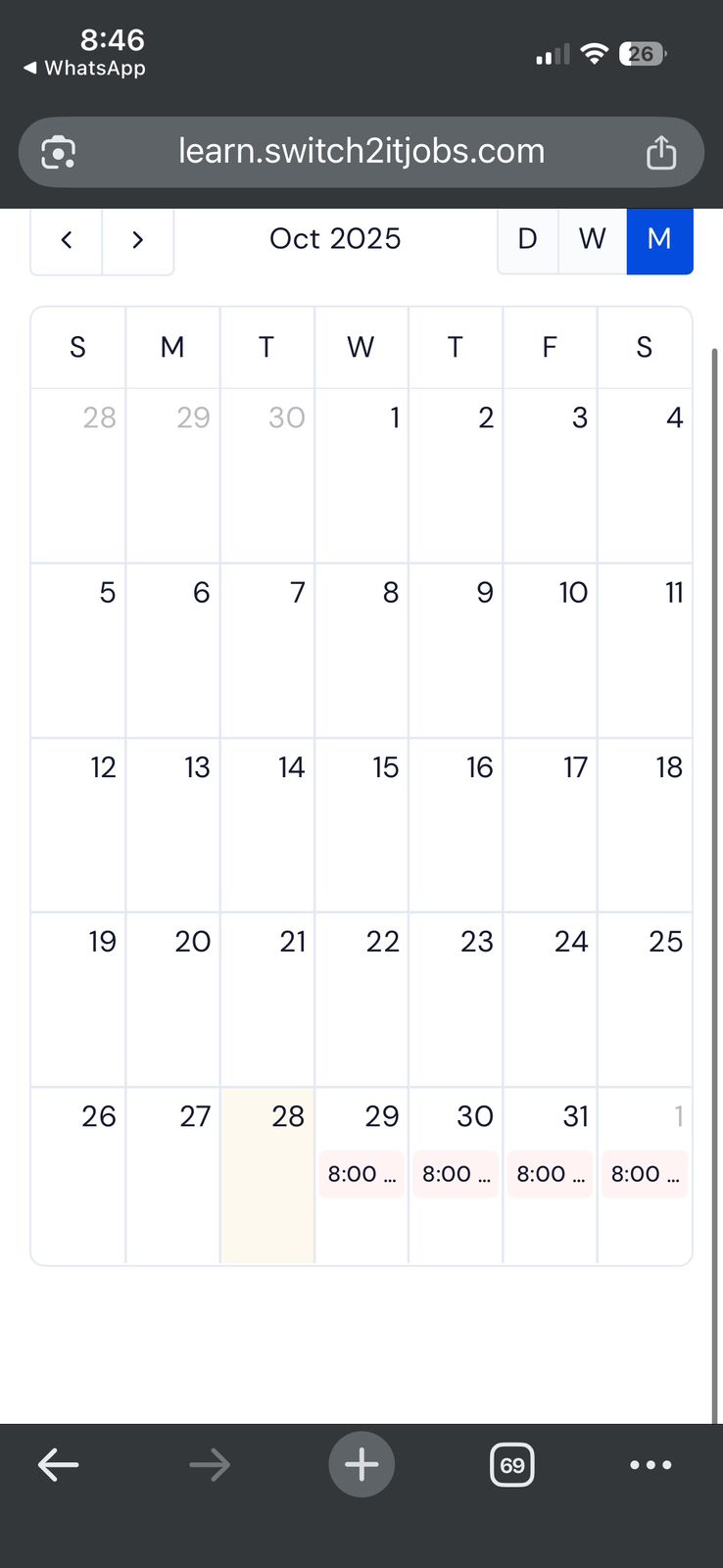
Click the “Schedule” tab on the top menu — this shows the complete calendar of your course.
Look for the current date.
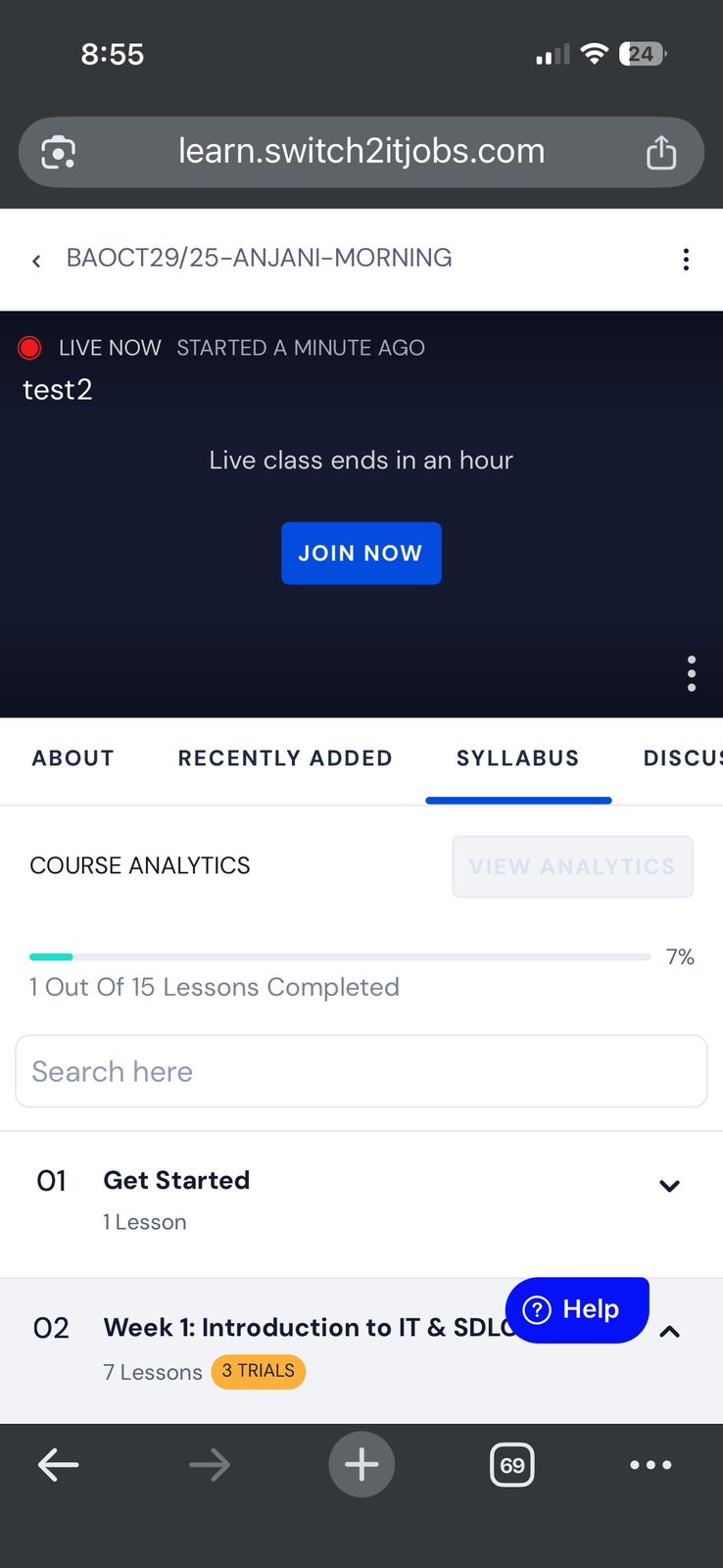
You’ll see your live class listed with a “Join Now” button.
⚠️ Note: The Join Now button appears only during the scheduled class time.

Step 5: Join the Live Class
At the scheduled class time:
Click “Join Now.”
You’ll be connected directly to the live session with your trainer.
Enjoy your session and experience how SIT helps professionals switch to rewarding IT roles.
Troubleshooting Tips
If you face any issue at any step:
Go back to Step 1 and follow the guide again carefully.
Ensure you’re using the same email ID you used to enroll.
Check your internet connection and try reopening the course link.
If the issue still persists, message your SIT coordinator on WhatsApp — our support team will assist you immediately.
? You’re All Set!
Now you’re ready to experience your SIT Free Trial Class confidently.
Take notes, ask questions, and make the most of your session!
Was this article helpful?
That’s Great!
Thank you for your feedback
Sorry! We couldn't be helpful
Thank you for your feedback
Feedback sent
We appreciate your effort and will try to fix the article